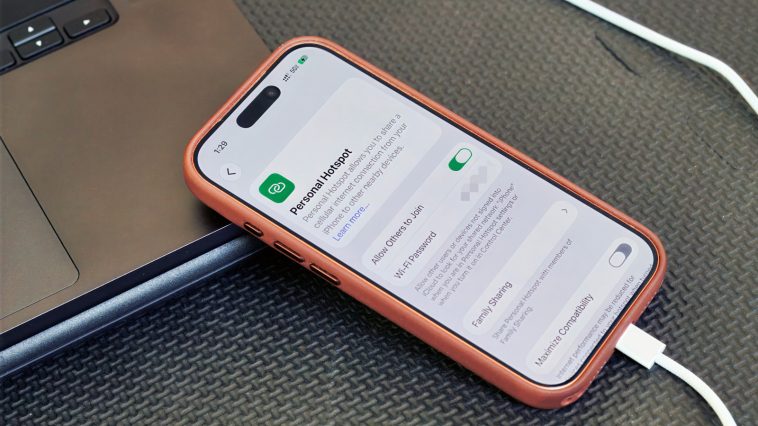
Unlocking Robust Connectivity: The Enduring Power of USB Tethering
In an increasingly wireless world, the convenience of Wi-Fi hotspots often takes center stage for mobile internet access. Yet, there remains a powerful, often underestimated alternative: USB tethering. This direct, physical link between your smartphone and computer leverages your phone’s cellular data connection for a reliable and secure internet experience, proving that sometimes, the oldest solutions remain the most dependable. This article delves into the nuances of USB tethering, exploring its unique benefits, setup intricacies, and crucial considerations for the modern tech user.
The Enduring Relevance of Wired Connections
While wireless hotspots offer unparalleled flexibility by supporting multiple devices simultaneously and allowing freedom of movement, they are not always the optimal choice. Scenarios demanding unwavering stability, heightened security, or consistent power delivery often call for a more direct approach. This is precisely where USB tethering shines, offering a distinct set of advantages that cater to specific, critical needs.
The inherent reliability of a wired connection can dramatically reduce latency and packet loss, a vital benefit in environments with congested Wi-Fi signals, such as busy convention centers, airports, or co-working spaces. Furthermore, the absence of a broadcasted Wi-Fi network significantly enhances security, making your connection less susceptible to casual snooping or targeted attacks, an invaluable asset for professionals handling sensitive data on the go.
Unpacking the Advantages of USB Tethering
Beyond sheer stability and enhanced security, USB tethering offers several compelling benefits. One significant advantage is the continuous charging of your smartphone while it acts as a modem, eliminating the worry of a drained battery during extended work sessions. This dual-purpose functionality ensures your primary communication device remains powered, ready for calls or other tasks.
Moreover, a wired connection can sometimes offer a more consistent data transfer rate, particularly with modern USB standards, potentially leading to a smoother experience for bandwidth-intensive tasks like video conferencing, large file uploads, or even critical software updates. As our reliance on high-speed internet grows, leveraging every possible avenue for robust connectivity becomes paramount, and USB tethering provides a direct, low-overhead path that bypasses potential wireless interference.
The Setup: A Step-by-Step Guide
Embarking on USB tethering is a straightforward process, though it comes with a few platform-specific considerations. It’s crucial to remember that Android devices currently do not support USB tethering to macOS. However, all other combinations—Android to Windows, and iPhone to Mac or Windows—are fully supported. Ensure you are using a data-capable USB cable, not just a charge-only wire, as this is a common overlooked detail.
For iPhone users connecting to a Windows PC, pre-installing the Apple Devices app or iTunes for Windows from the Microsoft Store is often necessary to ensure the correct drivers are in place for seamless recognition and connectivity. This preliminary step can save considerable troubleshooting time.
Setting Up on Android
- Connect your Android phone to your Windows PC using a data-capable USB cable.
- On your phone, navigate to Settings > Network & internet > Hotspot & tethering. (Note that on some Android devices, this path might be Settings > Connections > Hotspot & tethering.) Alternatively, you can typically swipe down to access Quick Settings, then long-press the Hotspot icon to directly access the tethering menu.
- Toggle on USB tethering. If the option appears grayed out, double-check your USB cable to confirm it supports data transfer.
Setting Up on iPhone
- Plug your iPhone into your computer using a USB cable.
- Respond to any authentication prompts: if your iPhone asks to trust the computer, tap Trust and enter your passcode. If connecting to a Mac, approve the “Allow accessory to connect” prompt.
- On your iPhone, go to Settings > Personal Hotspot. (If you haven’t used Personal Hotspot before, you might need to enable it first under Settings > Cellular > Set up Personal Hotspot.)
- Ensure Allow Others to Join is toggled on.
Key Considerations and Future Outlook
While USB tethering presents a compelling connectivity solution, it’s generally best suited for single-device scenarios rather than a comprehensive hotspot replacement. This focused approach ensures the dedicated bandwidth delivers optimal performance to your primary working machine. Be mindful of data consumption; laptops can quickly accrue significant data usage through background updates, cloud synchronization, and streaming services. Actively monitoring your data usage and configuring device settings to limit background activities is highly recommended.
Furthermore, always scrutinize your mobile carrier’s data plan. Many providers impose specific limitations on hotspot data, which might differ from your main cellular data allowance, incur additional charges, or be subject to deprioritization after a certain threshold. Understanding these terms can prevent unexpected bills or throttled speeds. Ultimately, the quality of your tethered connection remains intrinsically linked to your phone’s underlying cellular signal; even the most stable wired connection cannot compensate for poor mobile reception.
Looking ahead, as 5G networks become ubiquitous and USB standards continue to evolve with technologies like USB4 and Thunderbolt, USB tethering is poised to become an even more powerful and integral tool for high-speed, reliable mobile connectivity. The convergence of faster cellular networks and more robust wired connections promises a future where a smartphone can truly serve as a formidable portable internet gateway for demanding professional tasks, bridging the gap between mobile flexibility and desktop-grade performance.
#TrendingNow #ViralContent #ExplorePage #ForYou #InstaDaily #Reels #TikTokMadeMeBuyIt #ChallengeAccepted #LifeHacks #MotivationMonday #GoodVibes #Throwback
Artificial Intelligence, Cloud, Data Science