Unlocking Your New TV’s True Potential: The Critical First Step Beyond the Box
The exhilaration of bringing home a brand-new television is a feeling few tech enthusiasts can deny. You’ve researched, compared specifications, and finally made the investment in a stunning new display, eager to immerse yourself in cinematic masterpieces or conquer virtual realms. Yet, that initial enthusiasm can quickly dampen when your gleaming screen presents a picture that’s far from the vibrant, crystal-clear imagery you envisioned – often appearing overly bright, unnaturally colorful, or simply distorted. Before you jump to conclusions about a faulty unit or embark on a frustrating journey of manual calibration, there’s a surprisingly common, yet often overlooked, culprit: the ubiquitous “Store Mode.”
The Retail Illusion: Understanding Store/Demo Mode
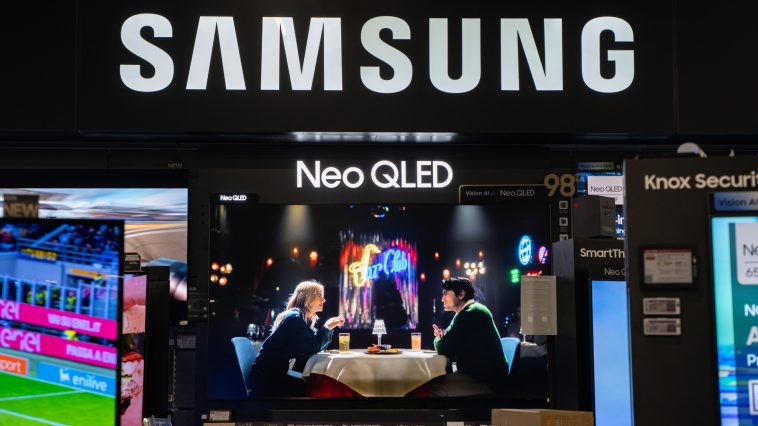
Manufacturers design televisions for a dual purpose: to shine in the competitive showroom and to deliver an optimal viewing experience in your home. “Store Mode,” also known as “Demo Mode” or “Retail Mode,” is a specialized setting meticulously engineered to make a television stand out amidst a sea of displays and under the harsh, often unforgiving, fluorescent lighting of an electronics store. Its primary objective is to grab immediate attention and highlight the screen’s maximum capabilities, not to provide an accurate or comfortable viewing experience tailored for a residential environment.
This aggressive mode typically maximizes the backlight intensity, artificially boosts contrast levels, and often over-saturates colors to create an overwhelmingly vibrant and “eye-popping” display. While this might momentarily captivate a passerby in a retail setting, it translates into an aggressively bright, unnatural, and ultimately fatiguing image within the softer, more controlled illumination of a living room. Furthermore, these heightened settings can lead to significantly increased power consumption, a crucial detail often overlooked when considering a TV’s long-term operational efficiency.
A critical, and often frustrating, characteristic of store mode is its propensity to periodically reset any user-made adjustments. This feature ensures that every potential customer experiences the display as the manufacturer intended for demonstration purposes. Consequently, attempting to fine-tune your picture settings while the TV remains in store mode is a futile exercise, as your meticulously crafted adjustments will invariably vanish, reverting to the harsh default settings within minutes.
Deactivating the Demo: A Simple Fix for Superior Viewing
Fortunately, rectifying this common display dilemma is remarkably straightforward. The process involves navigating your TV’s internal settings menu to locate and deactivate the “Store Mode” or “Demo Mode” option. While the exact pathway may vary slightly across different manufacturers – the menu structure on a Samsung will differ from an LG, and a Sony from a TCL – the core concept remains universally consistent.
Typically, you’ll discover this crucial setting nestled within broader categories such as “System,” “General,” “Advanced Settings,” or “Picture Mode.” Many manufacturers wisely provide a dedicated “Usage Mode” option, offering a clear choice to switch between “Store Mode” and “Home Mode” (or “Standard Mode”). Should a quick scan of these menus not immediately yield the answer, consulting your TV’s user manual or performing a targeted online search for your specific model and “turn off demo mode” will invariably provide precise, step-by-step instructions. It is also prudent to ensure any “Auto Store Mode” functionality is explicitly disabled to prevent accidental re-engagement of the retail settings.
Once you have successfully transitioned your television out of its retail-centric shell, you will immediately witness a dramatic and profound improvement in overall picture quality. While further fine-tuning through your TV’s individual picture presets or subtle manual adjustments may still be desired to achieve a truly personalized viewing experience, disabling store mode is the foundational and most crucial step toward unlocking your new display’s genuine cinematic potential.
Optimizing Your Home Cinema: Beyond the Initial Fix
Disabling store mode is merely the initial, albeit critical, step in fully optimizing your new television. Modern displays are sophisticated pieces of technology, offering a wealth of advanced settings meticulously designed to cater to diverse content and individual viewing preferences. Understanding and intelligently utilizing these features can significantly elevate your home entertainment experience.
Consider exploring your TV’s various pre-calibrated picture presets, such as “Movie,” “Cinema,” or the increasingly common “Filmmaker Mode.” These modes are often professionally calibrated to deliver a more color-accurate, natural, and less processed image, closely aligning with the director’s original artistic intent by reducing effects like excessive motion smoothing, often dubbed the “soap opera effect.” For avid gamers, activating specific “Game Modes” is essential, as they minimize input lag, providing a far more responsive and competitive gaming experience.
The television industry is in a perpetual state of evolution, continuously introducing innovative features like Dolby Vision IQ and sophisticated ambient light sensors. These intelligent technologies dynamically adjust display settings in real-time to maintain optimal picture quality across varying room conditions. Investing a small amount of time to understand these intelligent features and making informed adjustments will ensure your television not only looks exceptional but performs at its absolute peak, providing an immersive, accurate, and genuinely impressive visual experience for many years to come.
#TrendingNow #Innovation #TechLife #DailyMotivation #FitnessGoals #TravelBug #FoodieAdventures #FashionForward #ArtLovers #SustainableLiving #Mindfulness #ProductivityHacks
Artificial Intelligence, Cloud, Cybersecurity